
用 Nano Banana 和 MAGI-2 做 15 秒广告
在 MAGI 2 AI 把一张 Nano Banana 产品图做成 15 秒 MAGI-2 广告,附可复制提示词、运镜和声音说明,以及 Logo 检查。
文章目录
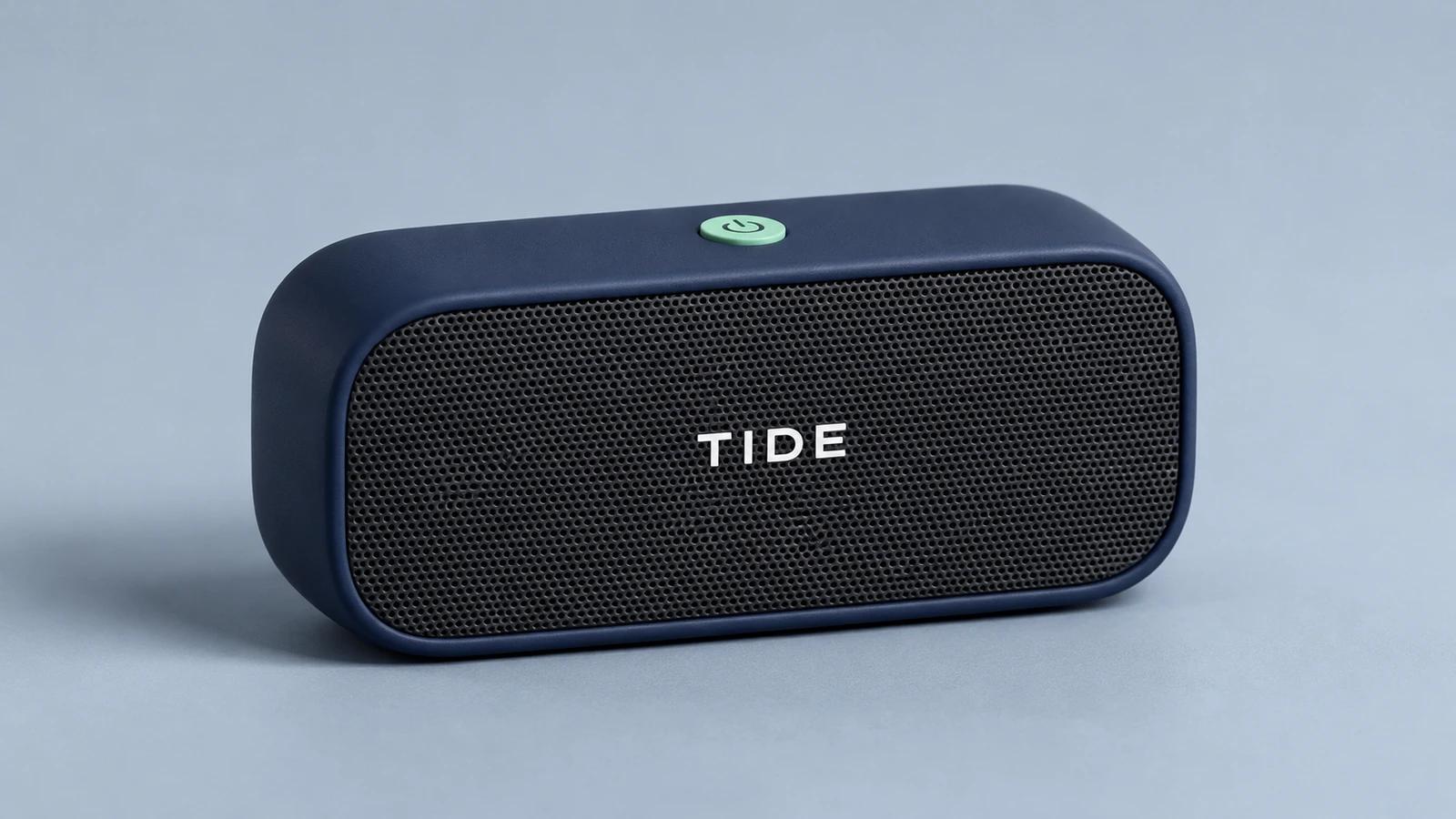
先准备一张清楚的产品图,再把它做成 15 秒广告,分成三拍:介绍产品、看清一个细节、停在可以当结尾卡片的画面上。用 Nano Banana 准备图片,再把这张图拿到提供 MAGI-2 的地方生成画面和声音。本站这一步在 MAGI-2 首页 完成。
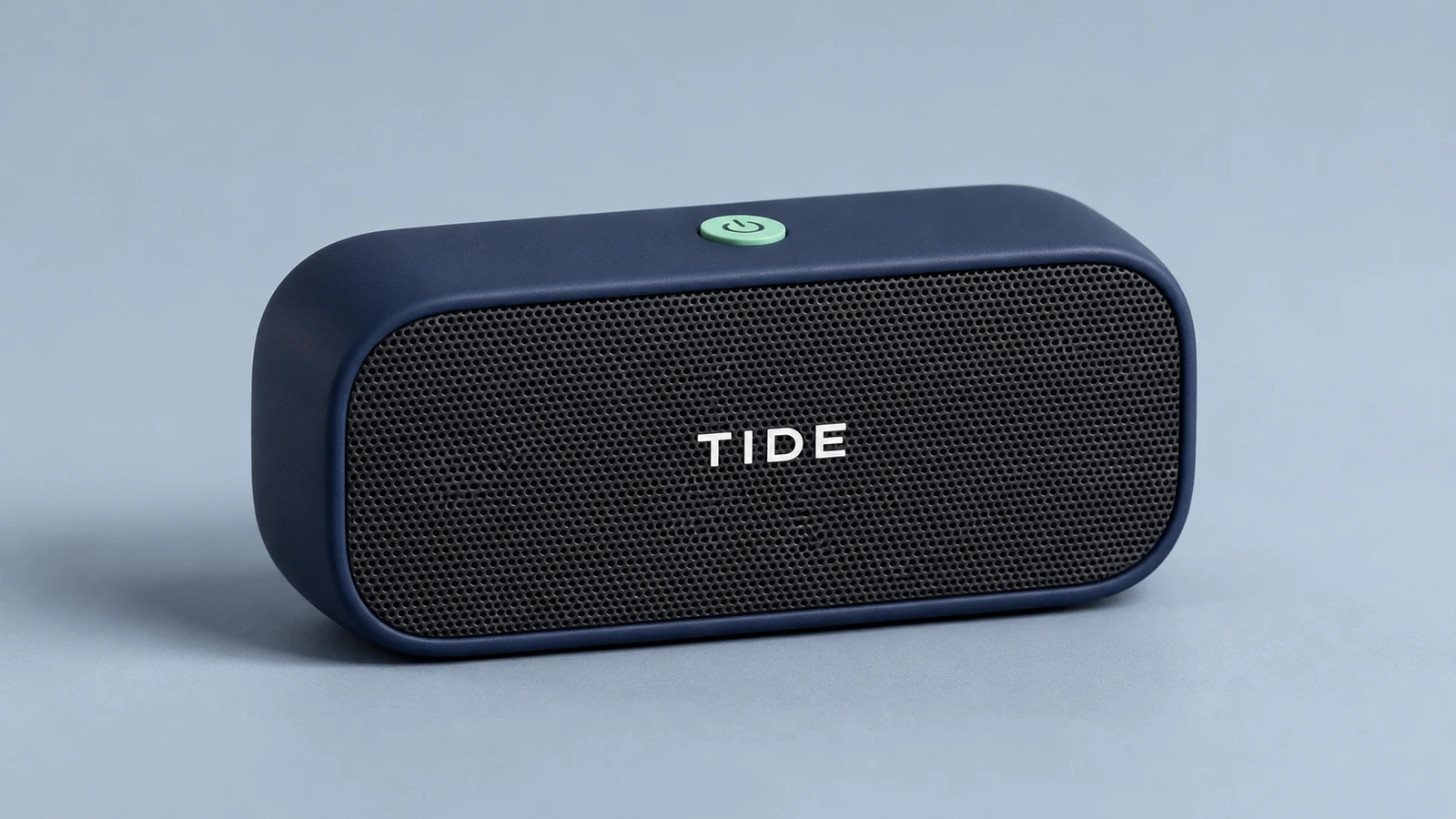
这里用虚构音箱 TIDE 做例子:哑光深蓝机身、深色网罩、一颗薄荷绿电源键。可以下载 TIDE 产品参考图,也可以用你自己的照片。这张 TIDE 图是为本文用 ImageGen 做的。下面的提示词可以直接试。本文只用这张静图当练习输入,还没有生成好的成片样例。
在 Nano Banana 里准备产品静图
正式广告请用你有权使用的清晰照片,在 Nano Banana 里选带图片编辑的模型,画幅设为 16:9。从能看见正面和顶面的四分之三角度开始。模型看不见的那一面只能猜,所以运镜只绕已经露出来的这一面。静图准备好后,到 MAGI-2 首页 生成视频。
提示词
Create a wide product still for a short ad. Use the supplied photo as the product reference. Keep the same three-quarter view, compact rounded shape, matte deep-blue body, dark perforated front grille, centered white TIDE wordmark, and one mint-green power button on top. Place the speaker on a pale blue-gray tabletop with a seamless cool blue-gray background, soft light from the left, and a small contact shadow. Leave space around all edges. Keep the grille and the four letters TIDE crisp. The only text in the frame is the existing TIDE wordmark.
放大后四个字母仍能读清、那一颗按钮还在,再导出。如果改场景时产品的一部分变了,回到原照片,或把原产品抠出来放到新背景上。Google 的图片生成文档里有用参考图只改局部的方法。Google 的 Nano Banana 图片文档
用这张静图生成 15 秒广告
打开 MAGI-2 的图生视频或混合参考流程。第一遍如果界面有首帧,就把静图当作首帧。如果接受参考图,就在提示词里写明这张图负责产品的外观和构图。选择 15 秒、16:9、1080p,界面有声音开关时打开生成音频。Sand.ai 在兼容 Ark 的接口里写明输出可以是 4 到 30 秒。Sand.ai 的生成设置 · Higgsfield 的 MAGI-2 图生视频
提示词
Create a 15-second, 16:9 commercial for the fictional TIDE speaker in the supplied image. Match the rounded matte deep-blue body, dark perforated grille, centered white TIDE wordmark, and single mint-green power button. The speaker stays still on the same tabletop throughout. 0–4 seconds. Begin at the reference angle. Push in slowly while keeping the whole speaker and its wordmark in view. Start with quiet room tone. 4–10 seconds. Slide slightly to the right while keeping the front grille in view. Let the soft side light reveal the grille texture and the mint-green button. Add one quiet, dry click near 6 seconds, with no visible button interaction. 10–15 seconds. Settle into a clear three-quarter hero frame. Hold the last two seconds with room beside the speaker for end-card type we will add in editing. Let the sound fade cleanly. Use no voiceover. Keep the existing TIDE wordmark as the only text in the output.
把时间段当成这一镜的要求。拖动成片,看镜头在哪里停住,并听那一下点击。如果点击必须正好在第 6 秒,就在剪辑软件里补上或挪过去。
给同一条要求加上运镜和声音参考
只有图片的那一遍做完后,再用能同时附加图片、视频和音频的流程跑一次。Sand.ai 的原生接口把图片、视频和音频分成不同输入。各家界面开放的组合可能不同。想比较多出来的文件有没有用,两遍都用同一种混合参考模式。Sand.ai 的混合参考接口 · Higgsfield 的 MAGI-2 参考生视频
产品图不变。运镜可以自己拍一段缓慢推进、再轻轻侧移、经过一个空白盒子的短片。声音用你制作或有权使用的短音频,大约在第 6 秒有一下点击。把下面这段接到同一条视频提示词后面,并使用供应商界面上显示的参考编号。
提示词
Use Image 1 for the TIDE speaker’s design, color, and framing. Use Video 1 only for the direction and speed of the camera move. Keep the speaker and tabletop from Image 1. Use Audio 1 as the timing and texture reference for the click and quiet ambience. Let the sound fade over the final hold.
对比两次成片的开头、点击附近和最后两秒。看运镜是否跟着参考视频、点击是否更接近预定节拍、TIDE 是否还一样清楚。如果合在一起之后开始飘,就把运镜和声音分开各跑一次,找出是哪一个文件造成的。
加结尾文字之前先检查
- 产品。 看运镜过程中的轮廓、网罩和按钮。音箱应停在桌上,形状和颜色保持原样。
- 字标。 停在最近的一帧和最后一帧,把 TIDE 四个字母逐个读出来。字变了,就放慢运镜,或用原静图做结尾卡片。
- 声音。 听开头和最后的停留。杂音尾巴剪掉。节拍很重要时,点击放在后期加。
- 最后一帧。 价格、优惠、按钮文案和法定文字放在剪辑软件里加,这样用词和位置由你决定。
先做只有一张图的那一遍,某个具体问题需要参考文件时再加。同一张静图也可以回到 MAGI-2 首页 再生成一版。