
Nano Banana and MAGI-2: a 15-second product ad
On MAGI 2 AI, turn one Nano Banana still into a 15-second MAGI-2 ad with copyable prompts, camera and sound notes, and a logo check.
On this page
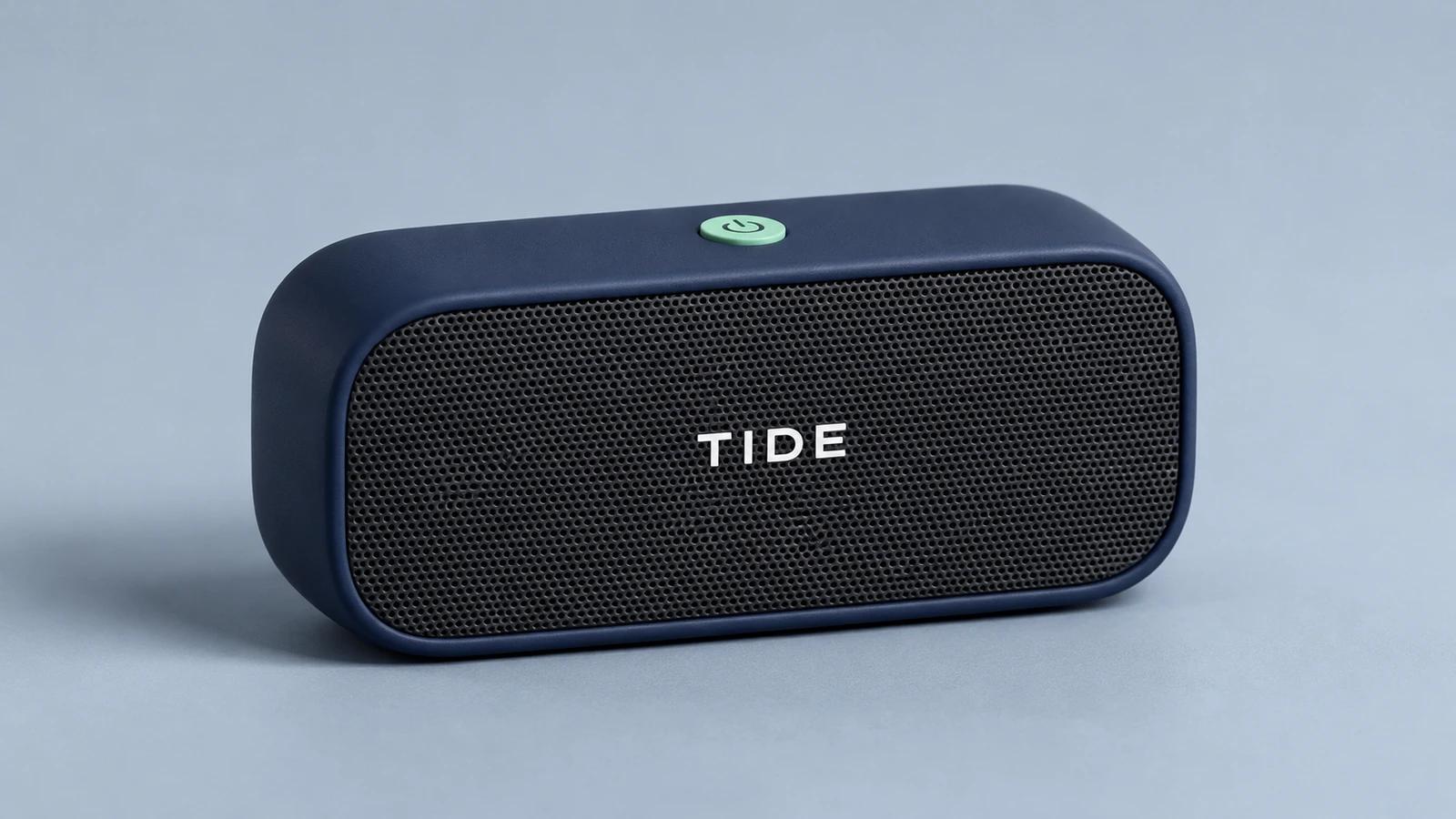
Start with one sharp product image, then turn it into a 15-second ad with three beats. Introduce the product, show one detail, and finish on a frame you could use as an end card. Use Nano Banana to prepare the image, then upload it to a platform that offers MAGI-2 for the video and sound.
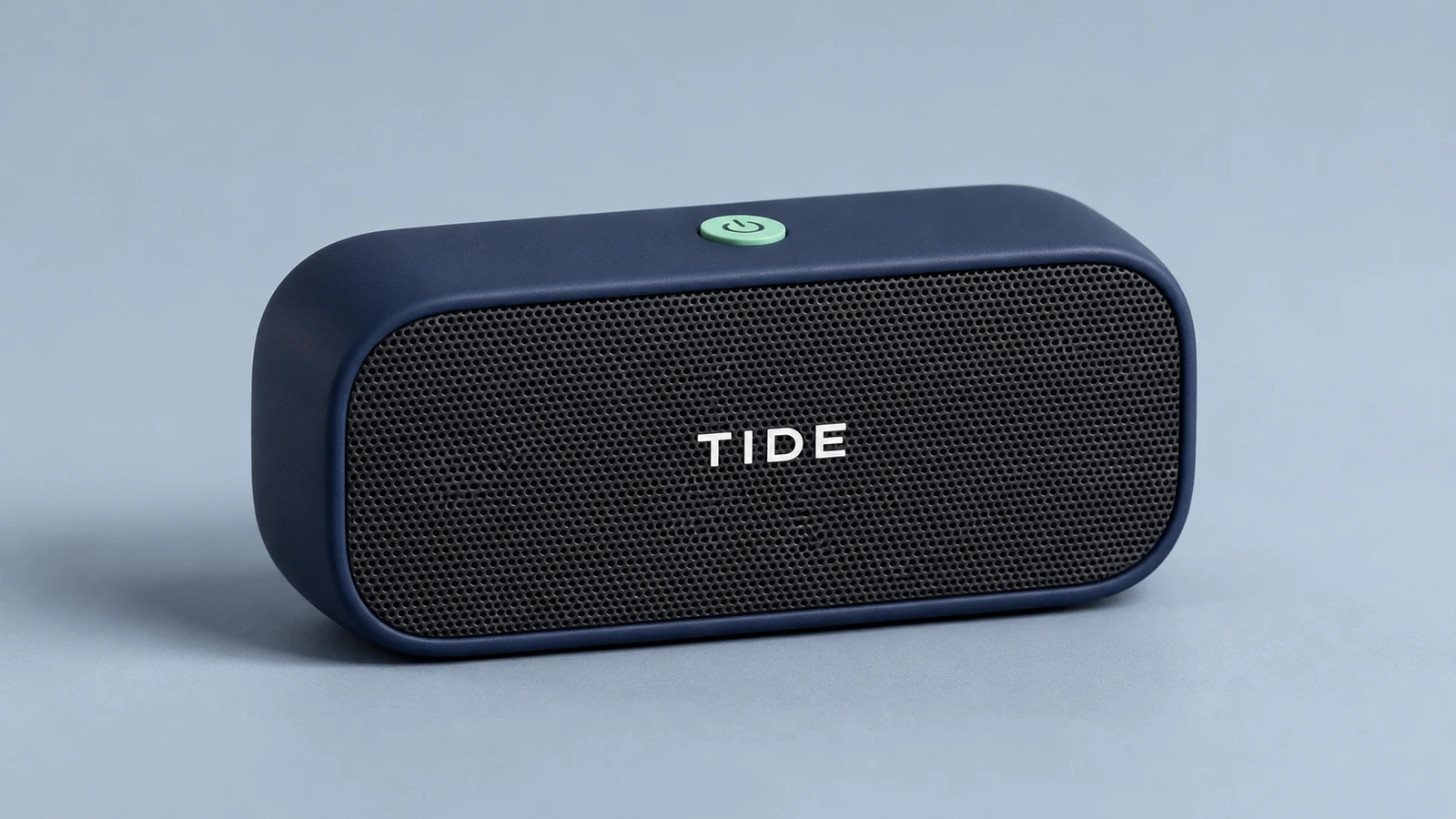
We’ll use TIDE, a fictional portable speaker with a matte deep-blue shell, a dark perforated grille, and one mint-green power button. You can download the TIDE product reference or use your own photo. The TIDE still was made with ImageGen for this guide. The prompts below are ready to try. This guide uses the still as a practice input and has no generated video sample yet.
Prepare a product still in Nano Banana
For a real ad, prepare a clear photo you own in Nano Banana, choose an image-editing model, and set the aspect ratio to 16:9. When the still is ready, generate the video on the MAGI-2 homepage. Start with a three-quarter angle that shows the front and top. The model can only infer any side it cannot see, so plan a small camera move around the visible face of the product.
Prompt
Create a wide product still for a short ad. Use the supplied photo as the product reference. Keep the same three-quarter view, compact rounded shape, matte deep-blue body, dark perforated front grille, centered white TIDE wordmark, and one mint-green power button on top. Place the speaker on a pale blue-gray tabletop with a seamless cool blue-gray background, soft light from the left, and a small contact shadow. Leave space around all edges. Keep the grille and the four letters TIDE crisp. The only text in the frame is the existing TIDE wordmark.
Export the still when you can read the four letters at full size and the single button is still visible. If part of the product changed when you edited the scene, return to your original photo or use the original product as a cutout on the new background. Google’s image-generation docs include a method for editing specific parts of an image with a reference. Google’s Nano Banana image documentation
Generate a 15-second ad from the still
Open a MAGI-2 image-to-video or mixed-reference workflow. For a first pass, use the still as the first frame if your platform offers that option. If it accepts a reference image, assign the image to the product’s appearance and framing in the prompt. Select 15 seconds, 16:9, and 1080p, with generated audio enabled where the interface offers a switch. Sand.ai documents 4–30 second outputs on its Ark-compatible endpoint. Sand.ai generation settings · Higgsfield MAGI-2 image-to-video playground
Prompt
Create a 15-second, 16:9 commercial for the fictional TIDE speaker in the supplied image. Match the rounded matte deep-blue body, dark perforated grille, centered white TIDE wordmark, and single mint-green power button. The speaker stays still on the same tabletop throughout. 0–4 seconds. Begin at the reference angle. Push in slowly while keeping the whole speaker and its wordmark in view. Start with quiet room tone. 4–10 seconds. Slide slightly to the right while keeping the front grille in view. Let the soft side light reveal the grille texture and the mint-green button. Add one quiet, dry click near 6 seconds, with no visible button interaction. 10–15 seconds. Settle into a clear three-quarter hero frame. Hold the last two seconds with room beside the speaker for end-card type we will add in editing. Let the sound fade cleanly. Use no voiceover. Keep the existing TIDE wordmark as the only text in the output.
Treat the time ranges as the brief for the shot. Scrub the export to measure where the camera settles and listen for the click. If you need the sound exactly at six seconds, add or move it in your editor.
Add movement and sound references to the same brief
Once you have an image-only pass, run the brief again in a workflow that lets you attach image, video, and audio references together. Sand.ai’s native API lists separate image, video, and audio inputs. Provider interfaces can expose different combinations, so use the same mixed-reference mode for both passes when you want to measure what the extra files contributed. Sand.ai mixed-reference API · Higgsfield MAGI-2 reference-to-video playground
Use the same product still. For motion, record a short, slow push and slight sideways slide past a blank box. For audio, use a short track you made or have permission to use, with a single click around six seconds. Append these instructions to the same video prompt and use the reference labels displayed by your provider.
Prompt
Use Image 1 for the TIDE speaker’s design, color, and framing. Use Video 1 only for the direction and speed of the camera move. Keep the speaker and tabletop from Image 1. Use Audio 1 as the timing and texture reference for the click and quiet ambience. Let the sound fade over the final hold.
Compare the two exports at the start, around the click, and during the last two seconds. Check whether the camera move follows the video reference, whether the click lands closer to the intended beat, and whether the TIDE lettering stays just as readable. If the combined version introduces drift, add the camera and audio clips in separate runs to identify which change affected the result.
Review the clip before adding the end card
- Product. Check the outline, grille, and button during the camera move. The speaker should stay planted and keep its original shape and color.
- Wordmark. Pause at the closest point and on the final frame. Read TIDE letter by letter. If the logo changes, use a gentler move or cut to the original still for the end card.
- Sound. Listen through the beginning and the last hold. Trim noisy tails or add the click in post if its timing matters.
- Final frame. Add the price, offer, CTA, or legal copy in your editor, where you control the exact wording and placement.
Start with the single-image pass and add a reference when it solves a specific problem. If you’re deciding which video model to use for a catalog of products, reuse this same still on the MAGI-2 homepage.