Why won't MAGI-2 accept my reference file?
On MAGI 2 AI, fix a rejected MAGI-2 upload by checking the mode, file type, size and duration. Use the worked examples before you try again.
On this page
First check the reference mode. A short MP4 can meet the size and duration limits and still have nowhere to go if you've selected First / last frames. Switch to Omni reference to use a clip for motion. If the video slot is already visible, check the file and its duration against the limits below. These limits apply to the generator on the MAGI-2 homepage.
Which reference mode takes your file?
| What you have | Mode to select | What to add |
|---|---|---|
| An image to animate | First frame | One image for the opening frame. |
| An opening and an ending image | First / last frames | Two images. Add the opening image first and the ending image second. |
| A motion clip, audio, or several subject photos | Omni reference | Add the files under Images, Videos or Audio. In your prompt, say what to use from each. |
| A written scene with no files | Text to video | On the homepage, leave Omni reference selected and its slots empty, then enter your prompt. |
For two stills, check that the first and last labels match the intended order before generating. For a clip, use the video slot and describe the movement you want to borrow on the MAGI-2 homepage.
Check the format, size and running time
These limits apply to MAGI-2 in this site's generator. The file counts in the table apply to Omni reference.
| File | Accepted formats | Maximum size per file | Quantity and duration |
|---|---|---|---|
| Image | JPG/JPEG, PNG, WebP | 30 MB | Up to 10 images |
| Video | MP4, MOV | 200 MB | Up to 5 clips, 2–30 seconds each, up to 30 seconds of video in total |
| Audio | MP3, WAV | 15 MB | Up to 5 clips, 2–30 seconds each, up to 30 seconds of audio in total |
Add up video duration and audio duration separately. An 18-second video plus a 14-second video totals 32 seconds. Trim two seconds or more from either clip, or remove one. An 18-second video plus a 14-second audio file fits both duration budgets. The output duration is a separate control. Shortening the output leaves these upload limits in place.
Match the symptom to the fix
- My phone photo is a HEIC. Export a JPEG or PNG copy from your photo editor. Changing the filename extension leaves the image data in its original format.
- The clip is short but too large. Check the exported file size. A video can be under 30 seconds and over 200 MB. Export the passage you need at a lower bitrate, then select the new file.
- The uploader can't read the duration. Play the exported file locally and check that your player shows its length. Export a fresh MP4 for video or WAV for audio, then add that copy. A one-second clip falls below the two-second minimum even when it plays correctly.
- Both images appear but the opening shot is wrong. Check whether you're in Omni reference. For an explicit start and finish, switch to First / last frames and add the two images in order.
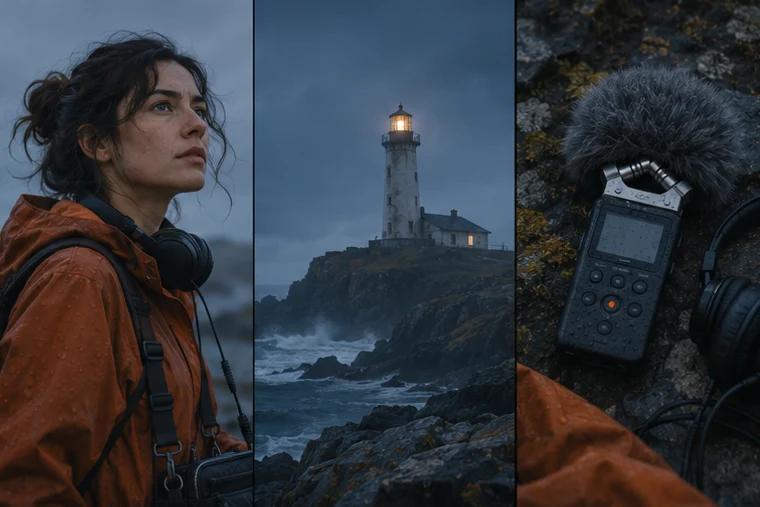
- My references are attached and Generate still asks for a prompt. Enter a scene instruction. For example, with a subject photo and a motion clip, try “Show the lighthouse from the photo. Follow the slow left-to-right pan in the clip.”
If the message asks you to sign in, complete sign-in before submitting. If a small, supported file repeatedly fails with an upload service error, keep the error wording along with the file's format, size and duration when reporting it.
Choose your next shot
For an upload check, start with one file in its matching mode and enter a short prompt. Add the other references one at a time so you can identify which selection triggers the message. When the files are ready, plan what the viewer sees in each shot on the MAGI-2 homepage.
Once the file is ready, check it on the MAGI-2 homepage.