
How to turn one photo into a MAGI-2 video
On MAGI 2 AI, turn one photo into a MAGI-2 video with First frame. Copy the five-second cat prompt and check the paws on playback.
On this page
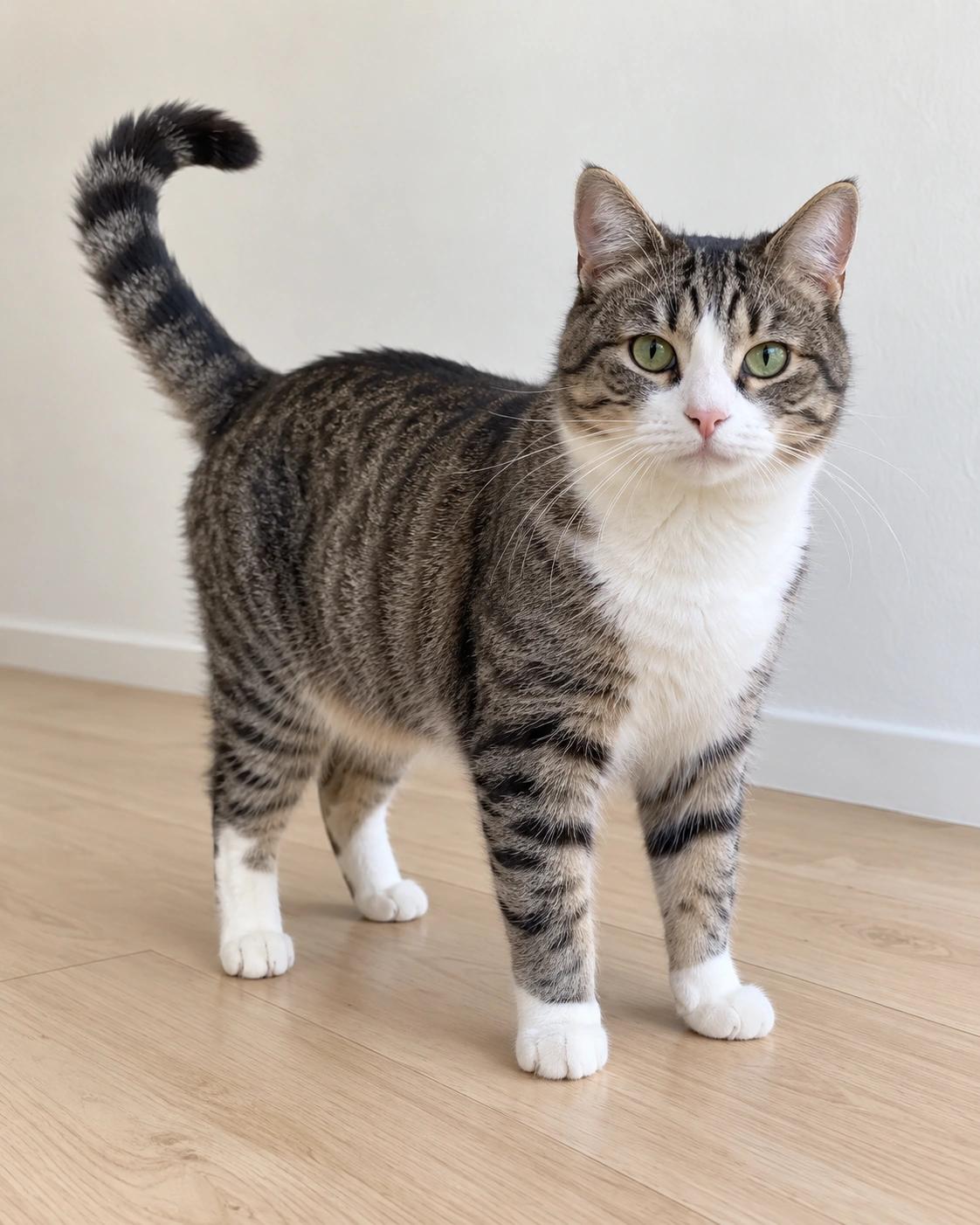
Open the MAGI-2 homepage and choose First frame to use your photo as the opening image. For a first attempt, pick one thing in the frame that could move while everything around it stays still. In the cover image, the tabby's tail is curled against a pale wall. A single flick of its dark tip is enough to give the viewer something to watch.
Prepare the opening image
You can save the full-size tabby image to follow along. It's an AI-generated practice still. The tail has clear space around it, all four paws touch the floor, and the edge of the baseboard gives you a straight line to check later.
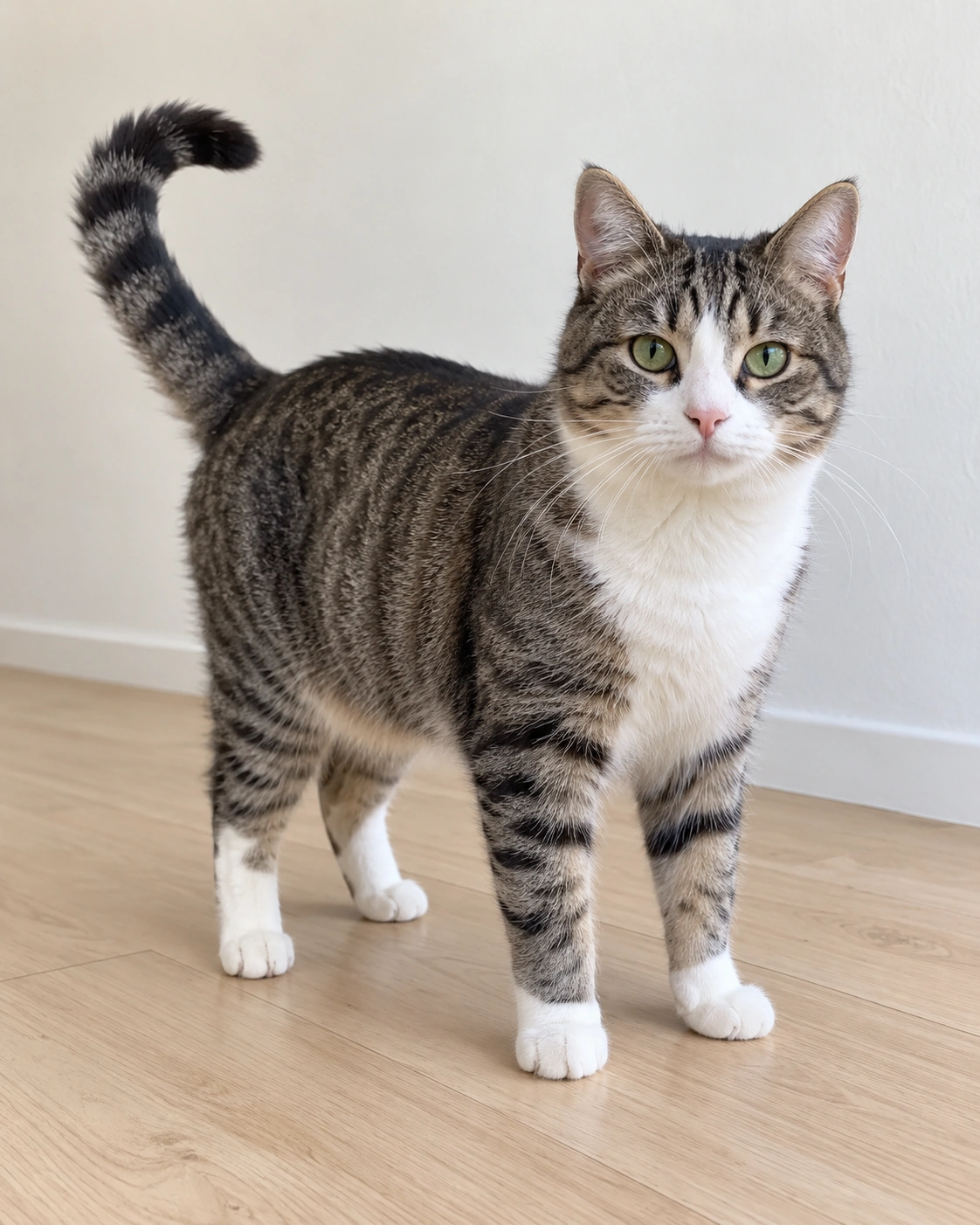
If you use your own photo, look at the edges before uploading. A tail already cut off at the top leaves little room for an upward flick. Try framing the animal a little wider, or choose a movement that fits the existing shot, such as a slow blink. Save a JPEG, PNG or WebP up to 30 MB.
Set up a five-second shot
- In the generator's video tab, check that the model reads MAGI-2. Open the reference-mode menu, which may currently read Omni reference, and choose First frame.
- Select Upload image and pick the file. Check that the thumbnail shows your intended opening shot and that the image count reads 1/1.
- Open the settings button that shows the aspect ratio and duration. For the upright cat image, choose 3:4 and 5 seconds. To check the framing in advance, crop a copy to 3:4 in your photo editor and leave room above the tail and below the paws. Switch Generate audio off for this silent shot.
Give the tail one movement
Copy the prompt below. The ear gives the tail tip a direction, and the floor gives you a way to tell if the cat has taken a step. If you use a different picture, change those details to match it.
Prompt
One continuous shot from the position of the opening photo. The green-eyed tabby stands facing the camera with all four white paws on the wood floor. Hold its opening pose for a moment. The dark tip of its raised tail curls a little farther toward its ears, then eases back to its opening position. Keep the paws planted and the cat's gaze on the camera. Hold that final pose with the same strip of baseboard visible behind it. The camera stays on a fixed tripod throughout.
Paste the prompt into the generator. Check the credit amount on Generate, then select it when you're ready and sign in if prompted.
Review the motion against your photo
- At the start, pause and compare the photo with the first frame. Can you see both the bent tail tip and the front paws? If either is clipped, inspect a crop with the chosen aspect ratio and leave more room at that edge before you upload again.
- During the flick, watch the baseboard on one pass and the paws on the next. If the whole baseboard shifts, try changing the camera direction to “Keep the baseboard at the same height in the frame for the whole shot.” If the baseboard holds still but the paws slide, tighten the action to “Only the last few rings of the tail move.”
- At the end, pause on the last frame. Is the tail back in its opening curl? If it keeps wagging, replace the tail instruction with “One small flick, then hold the curled tail still until the shot ends.” Keep the same photo, duration and framing when you try the change.
If the image is rejected before you reach playback, go back to the MAGI-2 homepage and check the file mode, size and duration. If your edit needs the cat to land in a particular second pose, prepare an image of that pose and set both frames on the MAGI-2 homepage.